One of the most fun and arguably pointless modifications of a device I’ve indulged in the last few years is making my own screensavers for my ereader.
Does it improve the reading experience? No. Does it change the story, or lubricate the tunnels down which I slip and slide into the world of another’s imagination? No. But does it make me feel cool? Yes.
I have a Kobo Libra 2. It’s served me well for over three years now. I’ve read upwards of 150 novels on it and over 100 film scripts, and the battery life shows no sign of wear. It’s waterproof, not that I’ve ever utilised that spec, has 16gb of space, not that I’d ever come close to filling up half of that, and fits in my duffel bag’s front pocket. My Kobo Clara could fit in my pants or jacket pocket, which was a lot more handy, but I enjoy the larger screen size of the Libra and the odd plastic holding wing, so it’s a small compromise I’m happy to make.
Koreader
One of the first things I did with my Kobo was install a thing called Koreader. Koreader is an open source patch that runs on any Kobo (or any jailbroken kindle) and it gives the reader manifold settings for the reader experience, read almost every type of readable file, customise all sorts of extra plugins to help you organise and view your books, and every swipe and button press runs faster than the native Nickel operating system.
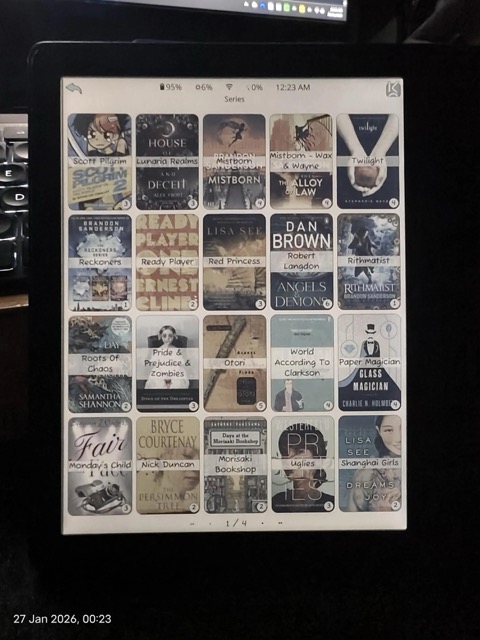
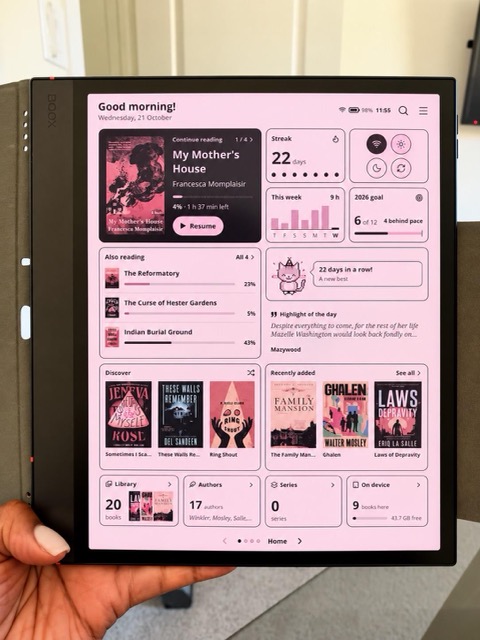
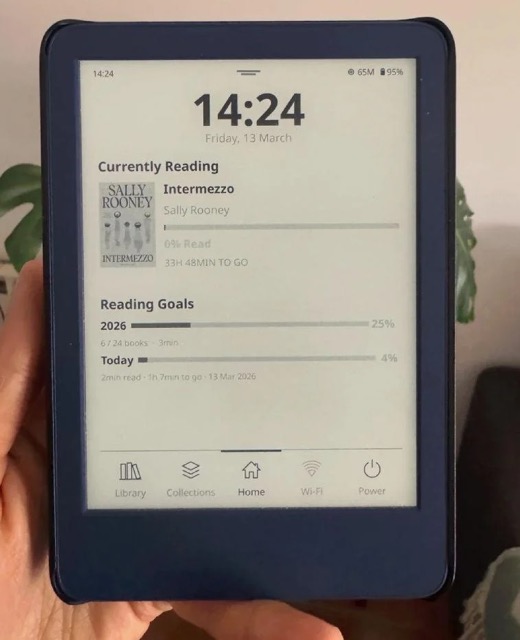
A few examples of how much cooler life can be when you’re running Koreader.
The Perks of Koreader
- Progress syncing - I experimented with using this but I don’t switch between devices enough to make it useful.
- Calibre connection - my favourite! being able to wirelessly transfer books should come standard.
- Reading statistics - Obviously I’m a giant nerd. If you have seen my progress trackers for reading you would understand.
- Cloud support - Another thing I don’t need or use, but it’s there if you want it.
- Offline dictionaries - I use this a lot more than I thought I would. There is also a vocabulary builder, so if you come across a word you really like, you can add it straight to that.
- Article saving - I don’t read articles on my eReader, but take my hat off to anyone who does.
- Open source - Always free, for everybody, forever, with all of the code visible to anyone who needs to look through it.
There’s a subreddit for Koreader users chock full of info. Anything you could need is there.
There’s also no end of customisation available for nerds like me. Simple things like font control and page setup, which is pretty standard, but you can set gesture shortcuts so you can tap on corners or swipe with one or two fingers to bring up the book map (one of my favourite features; see below) or reading statistics, then of course there is the customised screensavers (more on that soon).
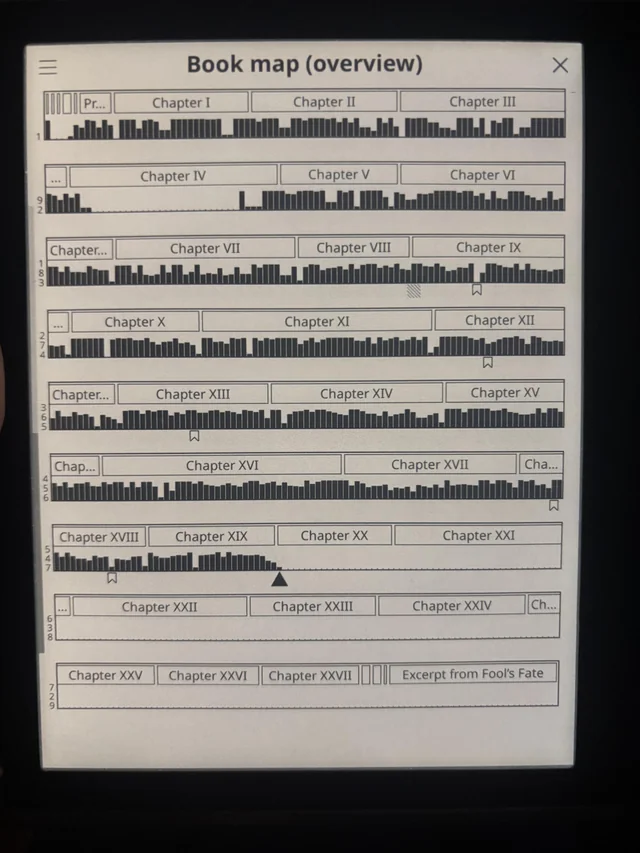
^ That’s the book map view. Isn’t it pretty? The bars are commensurate to how long you spend reading each page.
Installing it is simple if you’re willing to watch a YouTube video or two and spend half an hour or so fiddling. I highly recommend anybody with an ereader does so, because one functionality alone is worth the time cost:
Koreader unlocks the ability to transfer files between your computer and ereader wirelessly.
Yup. It might not sound like much, but because I’m a lazy chap, I find I’ve got a menial mental barrier that stops me plugging in my ereader just to transfer over a book. If I exclusively used the Kobo store, it wouldn’t be a problem. But I don’t. I have Calibre and a large library of epubs from over the years.
It takes literally 5 seconds, but even fetching the USB cable from my phone charger feels like an abominable task akin to taking out the trash and having the bag rip, or doing the dishes and getting water flung up onto your jersey.
Sophisticated bookish types like us needn’t weather such trials.
Wirelessly sending books should be the norm. It’s not, because Amazon and Kobo and Google have designed the world to lock you into their ecosystem with convenience, so clever people like the makers of Koreader have to step in. And I’m grateful they have.
The Funnest Modification
Perhaps the most frivolous tweak Koreader unlocks is the ability to make your own screensavers.
Any jpeg or PNG can be loaded onto the ereader’s memory and displayed on the screen when your reader is asleep. You can load as many as you want and set it to Random, so every time you put your reader to sleep, you have a new image of your choosing.
Because transparency is enabled, there are all sorts of cute ideas you experiment with. There are subreddits dedicated to these now, as well as entire website where you can download other people’s inventions and share your own with the community.
Here are a few of mine:
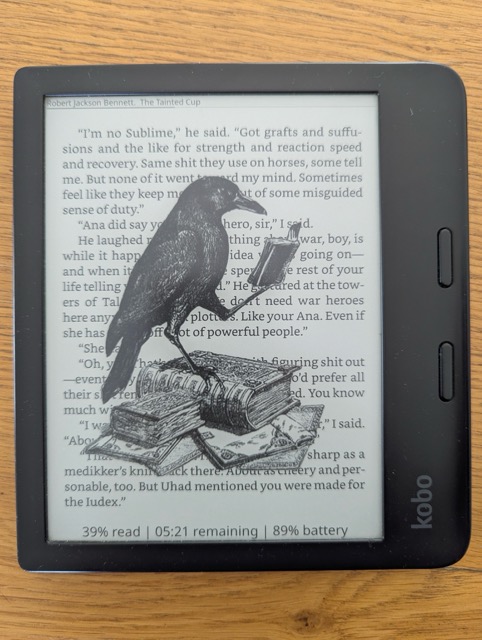
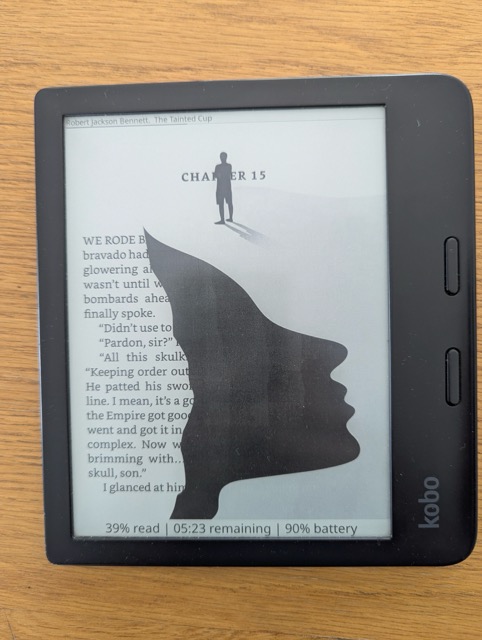
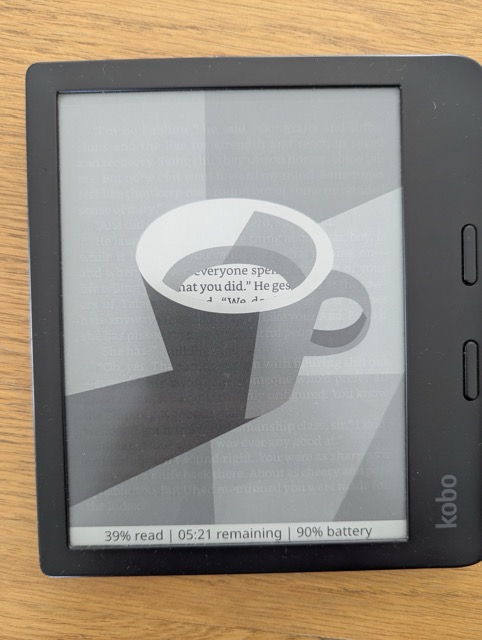
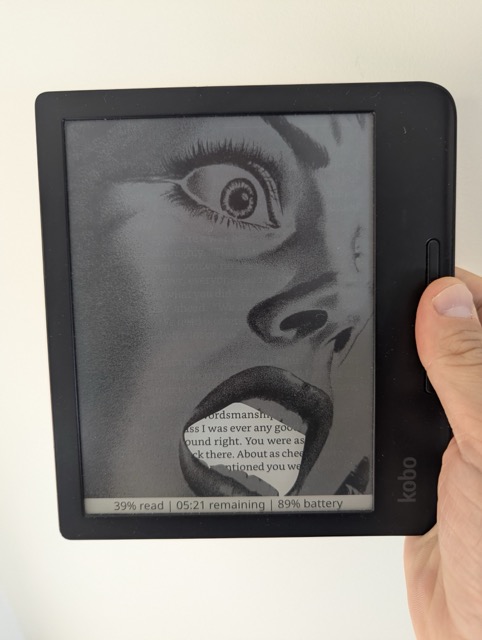
I made 35 that I’m quite proud of, and you can download them here for free.
How to install Koreader screensavers
(First, install Koreader)
Step 1: Prepare and Transfer Images
- Format and Size: Prepare your images in PNG or JPEG format, matched to your e-reader’s native screen resolution (for example, 1072 × 1448 for a Kobo Clara HD or 1264 × 1680 for a Kobo Libra 2.
- Transfer to Device: Plug your e-reader into your computer via USB.
- Create a Folder: Create a dedicated folder (such as
screensaversorwallpaper) anywhere on your device storage and drop your image files into it. Eject your device safely.
Step 2: Configure KOReader Settings
- Open KOReader: Launch KOReader on your e-reader.
- Navigate to Screen Settings: Tap the bottom or top menu to bring up the toolbar, tap the gear icon (⚙️) for Settings, and go to Screen ▸ Sleep Screen ▸ Wallpaper (or Screen ▸ Screensaver depending on your version).
- Select Custom Images: Choose Show random image from folder on sleep screen (or the equivalent custom image/cover option).
- Choose Folder: Tap Custom images or Random image folder, pick Choose folder, and navigate to the image folder you created. Long-press the folder name to confirm and set it as your source.
Step 3: Optional Customisations
- Remove Sleep Text: If you want to get rid of the “Sleeping” or custom status text, go to Settings ▸ Screen ▸ Sleep Screen ▸ Sleep screen message and toggle off Add custom message.
- Adjust Scaling/Rotation: Check options like image scaling or border fill if your pictures appear stretched or misaligned.
Please enjoy. Once you’re all set up with your fancy screensavers, why not buy a copy of A Rockstar Has Exploded (or An Actress is Missing or A Fiancé Has Flatlined) to test it out on.
Happy reading!